
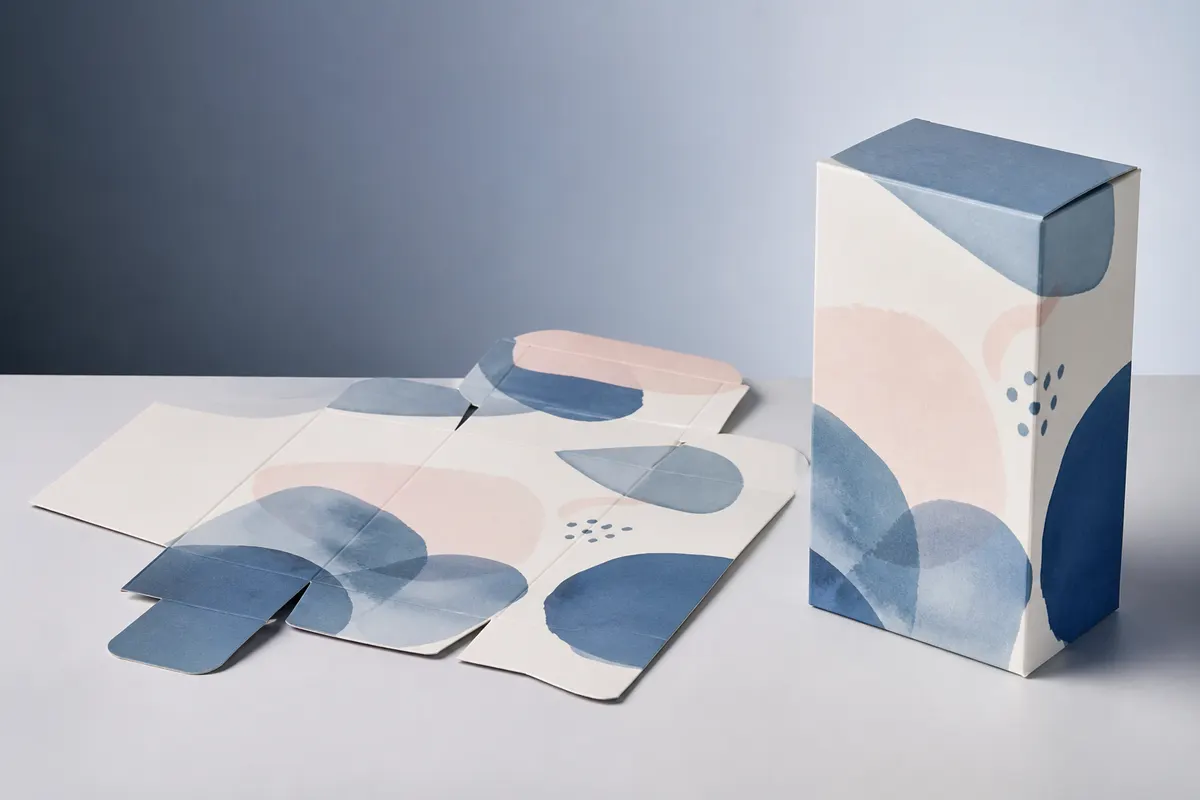
A 3D box design maker bridges the gap between flat packaging artwork and the moment a client says yes. Here is a practical workflow teams use with 3D Box Studio to move from dieline-adjacent flats to an interactive preview.
Step 1 — Gather face artwork
Export each panel as PNG or JPG from Illustrator, Figma, or Photoshop. Name files by face (front, back, left, right, top, bottom) so placement is obvious when you upload.
Step 2 — Set structural dimensions
Enter the finished box size in millimeters, centimeters, or inches. Match the outer dimensions your structural spec calls for—even if the preview is not a certified die-line, correct scale makes typography and logo sizing trustworthy.
Step 3 — Choose material and environment
Pick kraft, white carton, gloss or matte plastic, corrugated, or metallic foil. Switch HDRI environments (studio, warehouse, sunset) to match how the box will appear in marketing photography.
Step 4 — Test openings
Use lid-from-back, split-top flaps, or door-left panel modes to simulate unboxing. Regulatory copy and tamper-evident seals often hide behind flaps—opening animation catches those issues early.
Step 5 — Export and share
Export a high-resolution PNG for email or slide decks. For internal backups, use Export JSON so a colleague can import the exact same scene. Record a short MP4 if motion helps sell the concept.
When to escalate to CAD
Once the client approves look and feel, hand dimensions and artwork to a structural designer for production die-lines. The 3D box design maker got you to alignment faster; CAD gets you to print.